


Mobile Wallets
Mobile Wallets
Mobile wallets make it simple and secure to pay with your CharterWest Bank Debit Card using your compatible smartphone, smartwatch, or other device. Whether you prefer Apple Pay®, Google Wallet™/Google Pay®, or Samsung Wallet™/Samsung Pay®, you can shop in stores, online, and in apps without pulling out your physical card.
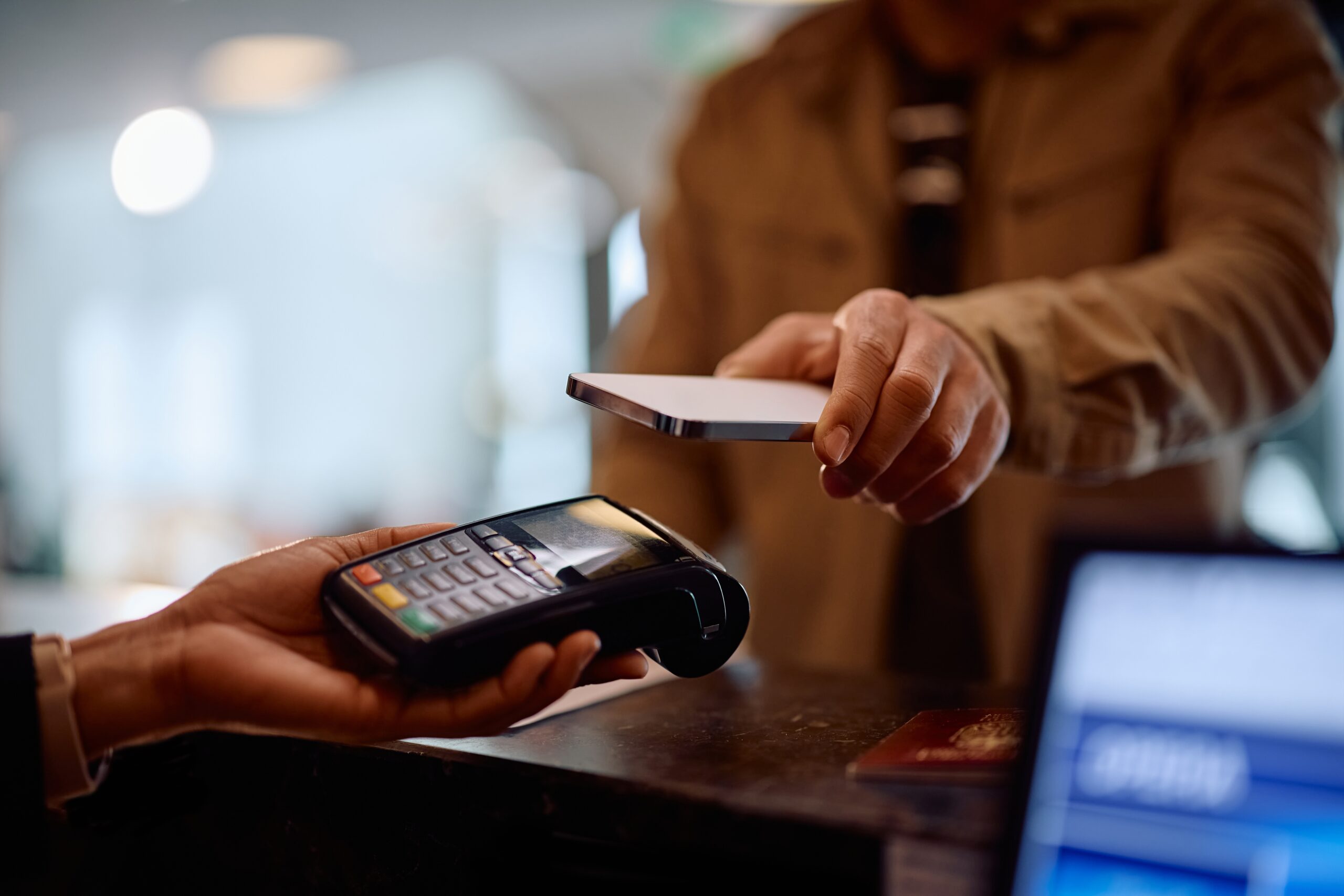
It’s easy to get started—add your CharterWest Bank Debit Card to your preferred mobile wallet and enjoy quick, secure, contactless payments wherever you see the contactless payment symbol.
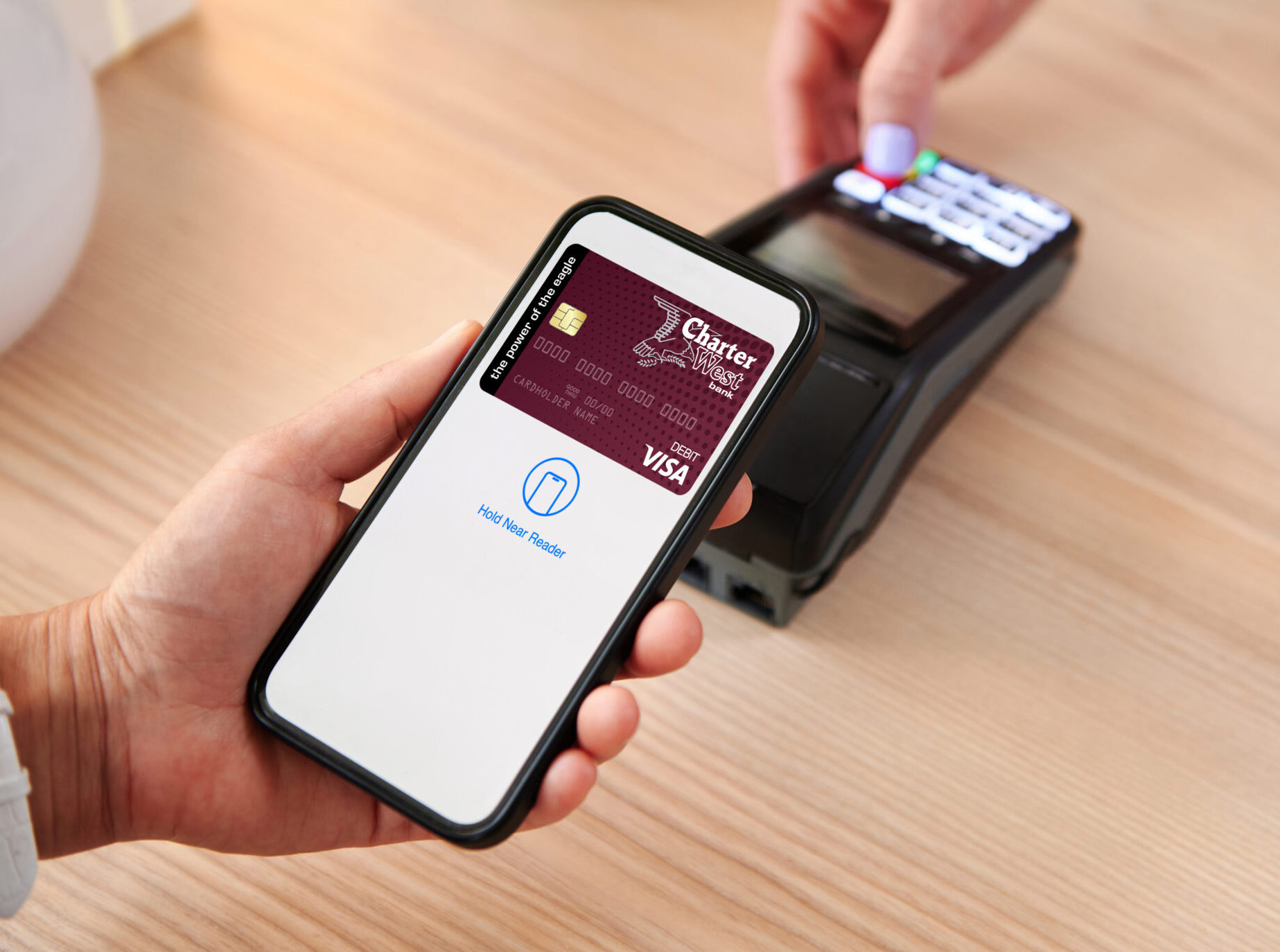
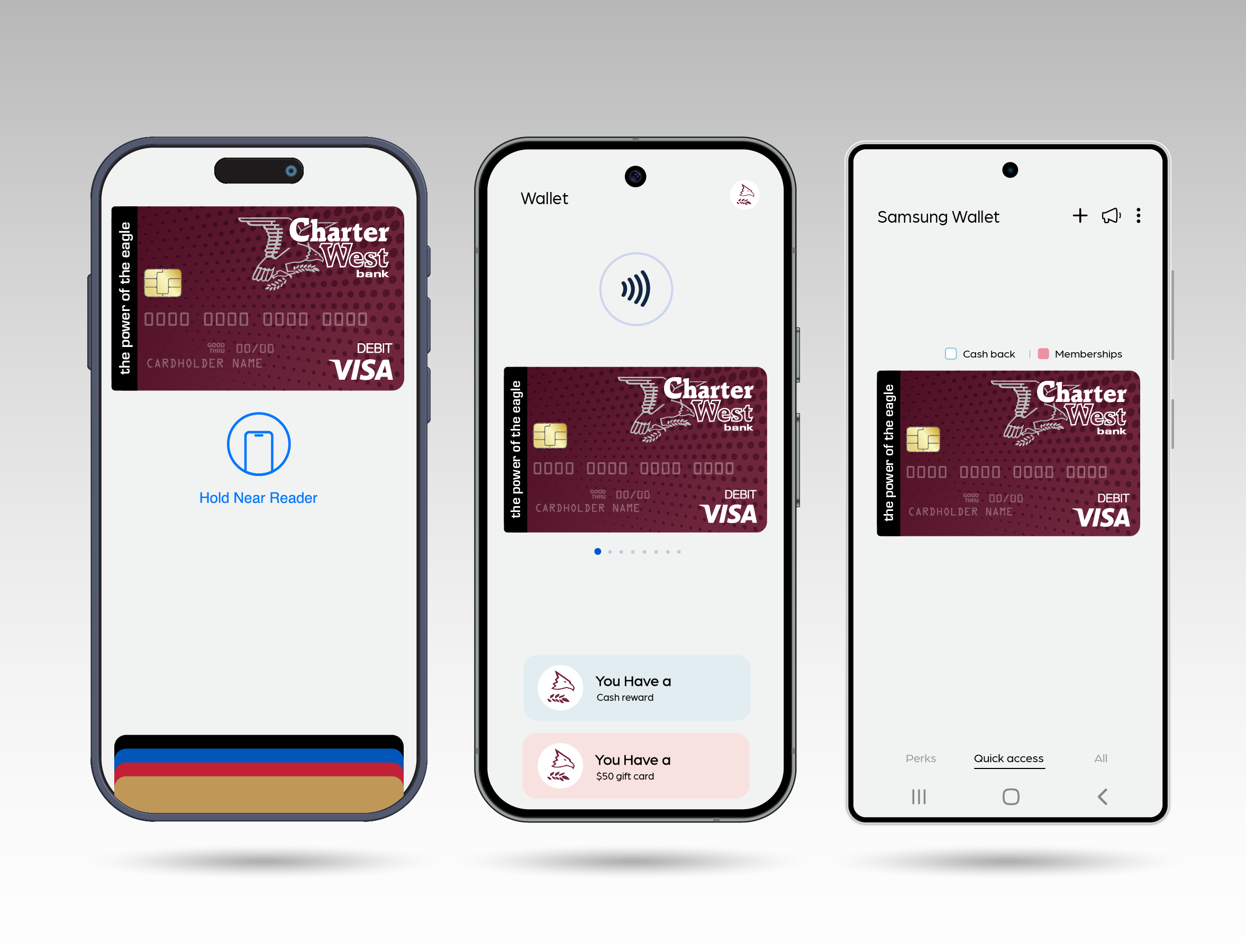
With Mobile Wallet you can:
Use contactless payment to make quick transactions without using a physical card.
Keep all your payment methods in one place.
Instantly apply loyalty points, discounts, or cash-back rewards.
Make secure online purchases without entering card details.
Keep your card number safe with tokenization.
Hold loyalty cards, event tickets, boarding passes, transit tickets, gift cards, and in some areas, digital identification documents.
Transfer money to family, friends, etc.
FAQ for Mobile Wallets
What is a Mobile Wallet?
A mobile wallet (often called a digital wallet or e-wallet) is an app that securely stores your payment details, such as debit and credit cards, bank accounts, and prepaid funds. It acts like a digital version of your physical wallet—only smarter. Many wallets can also hold loyalty cards, event tickets, gift cards, and in certain areas, digital identification documents.
How Do Mobile Wallets Work?
Most mobile wallets use near field communication (NFC) to enable contactless payments in stores. When you tap your device at a supported terminal, the wallet sends a unique encrypted code—not your actual card number—to complete the transaction. This process, known as tokenization, adds a strong layer of protection. For online purchases, simply select your mobile wallet at checkout to pay securely without entering card details.
Why Should I Use a Mobile Wallet?
Mobile wallets offer several benefits over traditional cards or cash:
- Convenience: Keep all your payment methods in one place.
- Speed: Tap, scan, or click—transactions are quick and seamless.
- Enhanced Security: Your real card number is never shared with merchants.
- Rewards Integration: Many wallets automatically apply loyalty points, discounts, or cash-back rewards.
Get Started with Mobile Wallet
Keep your wallet close by whether you have an iPhone, Android, or other smartphone. It all starts by downloading your preferred mobile wallet app.
Make the switch to lessen the hassle of sorting through physical cards in order to make a transaction. Using your mobile wallet will allow for ease of use and top-tier organization.
Download your preferred Mobile Wallet by clicking one of the icons on the right.
Download Your Mobile Wallet App
FOR APPLE DEVICES
Apple Pay®
Add Your CharterWest Debit Card to Apple Pay
Open the Apple Pay app on your iPhone or compatible device.
Tap the plus (+) icon near the top of the screen. Choose the card type.
Scan your card using your device’s camera or enter the details manually.
Follow the on-screen steps to verify your card.
Once verification is complete, your card is ready to use.
Add Your CharterWest Debit Card to Apple Pay
In-Store with Face ID
- Look for the Apple Pay or contactless payment symbol.
- Double-click the side button and authenticate with Face ID.
- Hold the top of your iPhone near the payment reader.
- When you see “Done” and a checkmark, the transaction is finished.
In-Store with Touch ID
- Look for the Apple Pay or contactless payment symbol.
- Place your finger on the Home button.
- Hold the top of your iPhone near the terminal.
- When “Done” and a checkmark appear, your payment is accepted.
Online & In-App
- Select Apple Pay at checkout.
- Review or enter your billing and shipping details.
- Confirm the purchase using Face ID or Touch ID.
- You’ll see “Done” and a checkmark once the payment is successful.
FOR ANDROID DEVICES
Google Wallet™ / Google Pay®
Add Your CharterWest Debit Card to Google Wallet
Download the Google Wallet app from the Google Play Store if it’s not already installed. To download Google Wallet click here.
Open the app, choose the card type, and scan or manually enter your card information.
Complete any verification steps to activate your card.
Once verification is complete, your card is ready to use.
Use Your CharterWest Debit Card in Google Wallet
In-Store
- Look for the Google Wallet or contactless payment symbol.
- Unlock your phone and hold it near the terminal.
- When a blue checkmark appears, your payment is complete.
Online & In-App
- Select the Google Wallet/Google Pay option at checkout.
- Verify your payment information and follow the prompts.
- You’ll see confirmation once the transaction is processed.
FOR SAMSUNG DEVICES
Samsung Wallet™ / Samsung Pay®
Add Your CharterWest Debit Card to Samsung Wallet
Download the Samsung Wallet app from the Google Play Store if it’s not already installed. To download Samsung Wallet click here.
Open the Samsung Wallet (or Samsung Pay) app on your compatible device.
Sign in with your Samsung account or create one if needed.
Follow the instructions to add and verify your debit card.
Use Your CharterWest Debit Card in Samsung Wallet
In-Store
- Swipe up from the bottom of your screen or open the Samsung Wallet/Pay app.
- Authenticate using your PIN, fingerprint, or iris scan.
- Hold your device near the reader.
- When the terminal or cashier confirms approval, your payment is complete.
Online & In-App
- Select Samsung Wallet/Pay at checkout.
- Authenticate with your fingerprint, PIN, or iris scan.
- A checkmark will appear when your payment is successful.
FOR Chartergo mobile app
CharterGo Mobile Banking
Add Your CharterWest Debit Card to Your Mobile Wallet
Open the “cards” section in our app.
Find the Debit Card you’d like to add to your mobile wallet.
Tap the ‘Add to Apple Pay’ or ‘Add to Google Pay’ icon.
In a couple of clicks your card will be uploaded into your phone’s mobile wallet!
Samsung Pay is currently not supported for this feature
Need Help Getting Started?
CharterWest Bank Debit Card, we’re here to help.
Contact your local branch—we’ll walk you through the setup process.